The portal at portal.mcpifex.com has three areas: a dashboard, a marketplace and My MCPs, your list of instances. An instance is your own copy of a hosted server with its own credentials, tool settings and API key. Free covers 3 instances and needs no card. Start free, or follow the quickstart.
Where do I find a server?
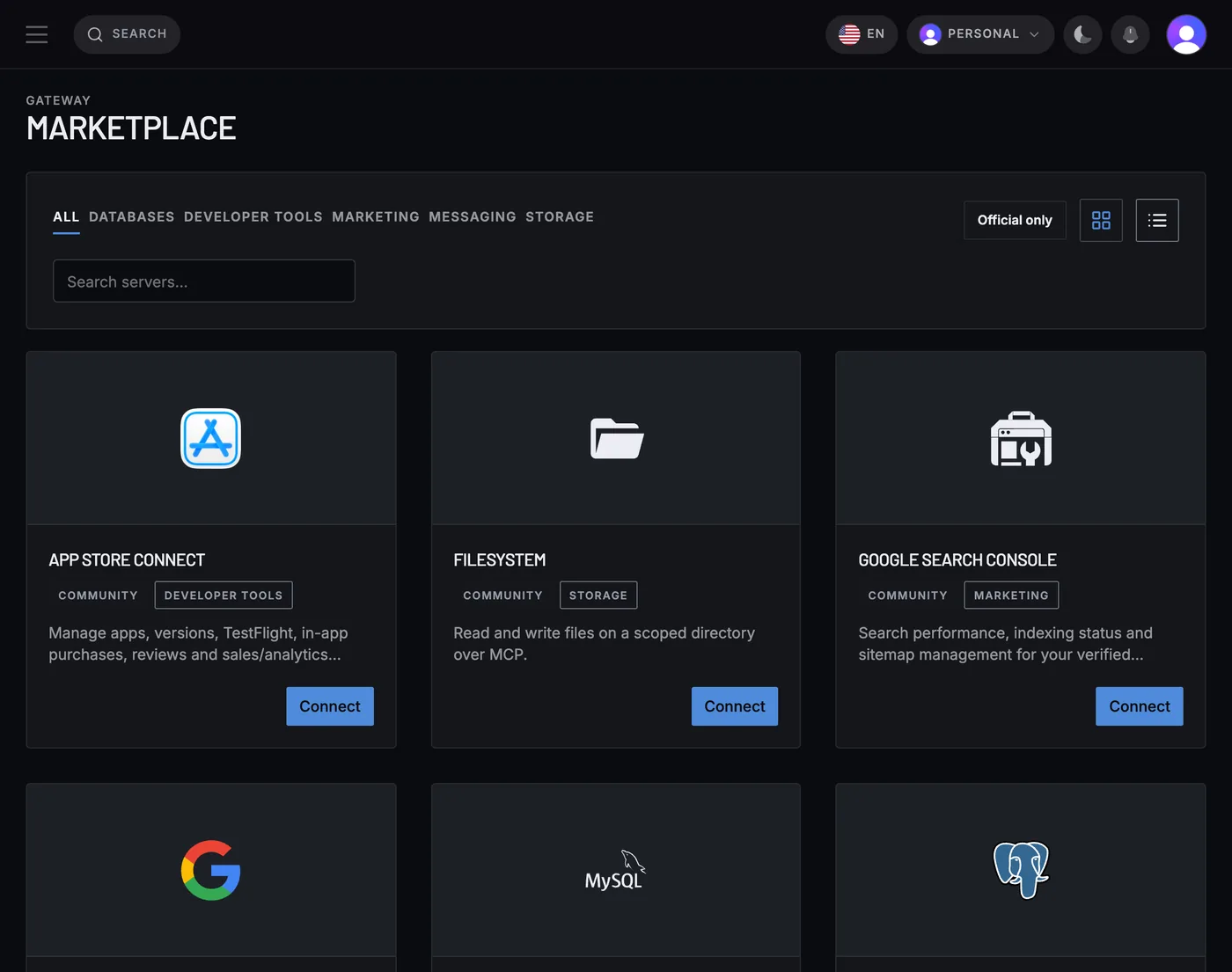
In the marketplace. It lists every server MCPifex hosts, grouped by category: databases, developer tools, marketing and messaging. Each card says whether the server is official or community-built, and servers that need a paid plan show it before you connect. The public marketplace page and the server pages describe them in more detail. Press Connect on a card to open the four-step wizard.
Step 1: What do I name my instance?
Anything that tells you what it is for, such as "Production analytics". The wizard asks for an instance name and a short description. Naming matters once you run several instances of the same server, because the dashboard and call logs are grouped by instance.
Step 2: What are the connection settings?
The credentials the server needs, entered once. For PostgreSQL that is your database connection. Google Search Console connects with Google sign-in, and Google Trends needs no credentials. Secrets are encrypted in transit and masked in the UI. Run Test connection before you finish, so a wrong password shows up before your first conversation.
Step 3: Which tools is my AI allowed to use?
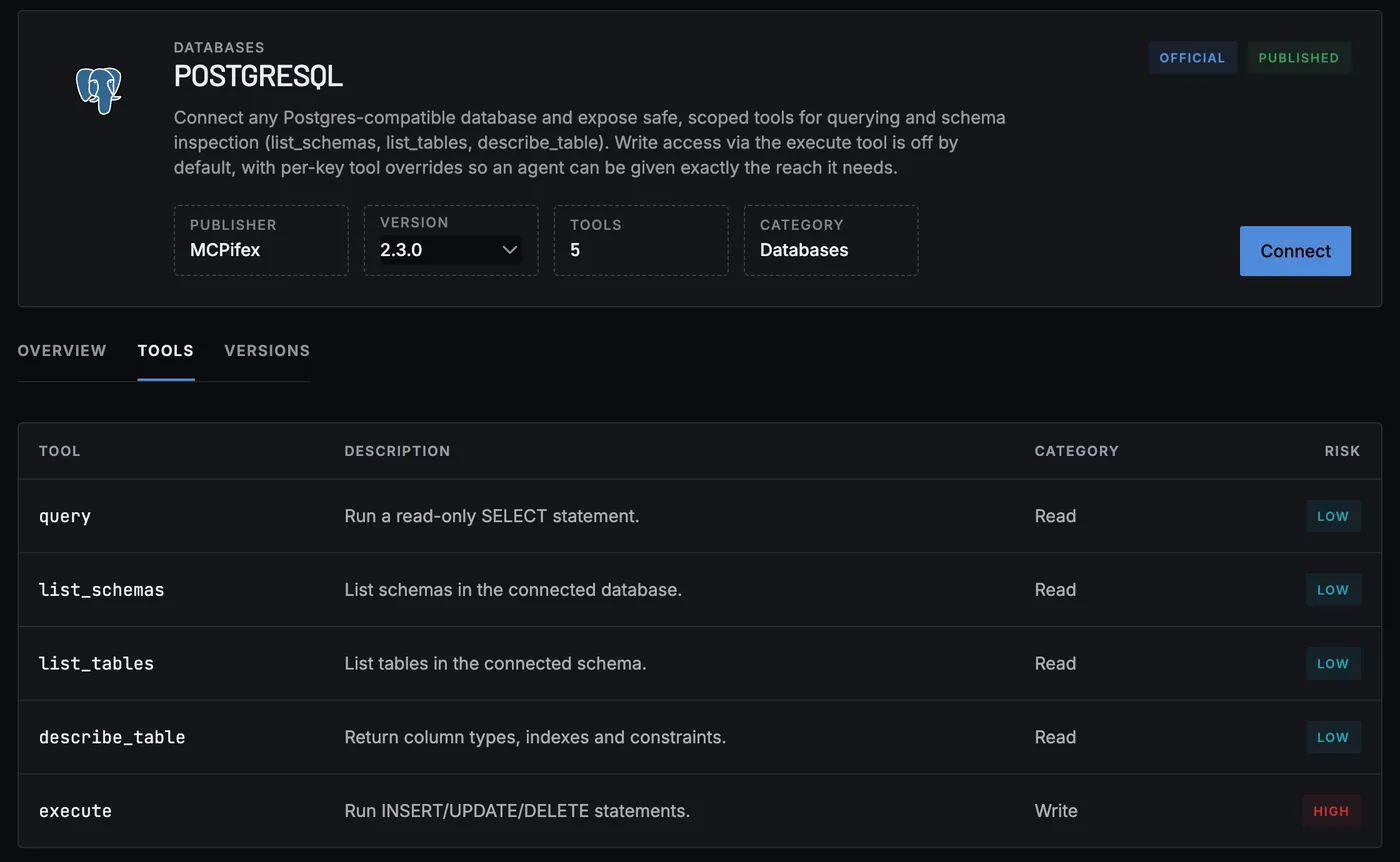
You decide, tool by tool. Every server page lists its tools with a category and a risk level. Write and delete tools start switched off on most servers, and each server page shows which tools are on by default. The gateway enforces your per-tool policy on every call and refuses anything outside the catalog. You can change the policy later without creating a new instance. Instances and tools explains the rules.
Step 4: How do I get connected?
The last step creates an API key that starts with mcpx_. The portal shows it once and it cannot be displayed again, so copy it then. You also get ready-made snippets for your client. If a key leaks or you stop using it, revoke it in the portal and new calls stop within about a minute. Read API keys and authentication, then connect your AI client.
How do I see what my AI did?
Open the dashboard. It counts gateway tool calls over the last 30 days: total, errors, successes and denied calls, with latency, the most-called tools and calls per MCP server. A denied call is a request for a tool you left off. Call logs are kept per instance, so you can trace a single call back to the instance that made it.
Can my team use it?
Yes, on the Team plan. It adds a shared workspace for up to 5 members, and you invite them from the portal. Free includes 3 instances, Pro 10 and Team 30, with unlimited gateway calls on every plan. Compare them on the pricing page, or read teams and members.
Ready to set up your first instance? Start free.
Ready to try it?
Run hosted MCP servers behind one endpoint and choose exactly which tools your AI can use.