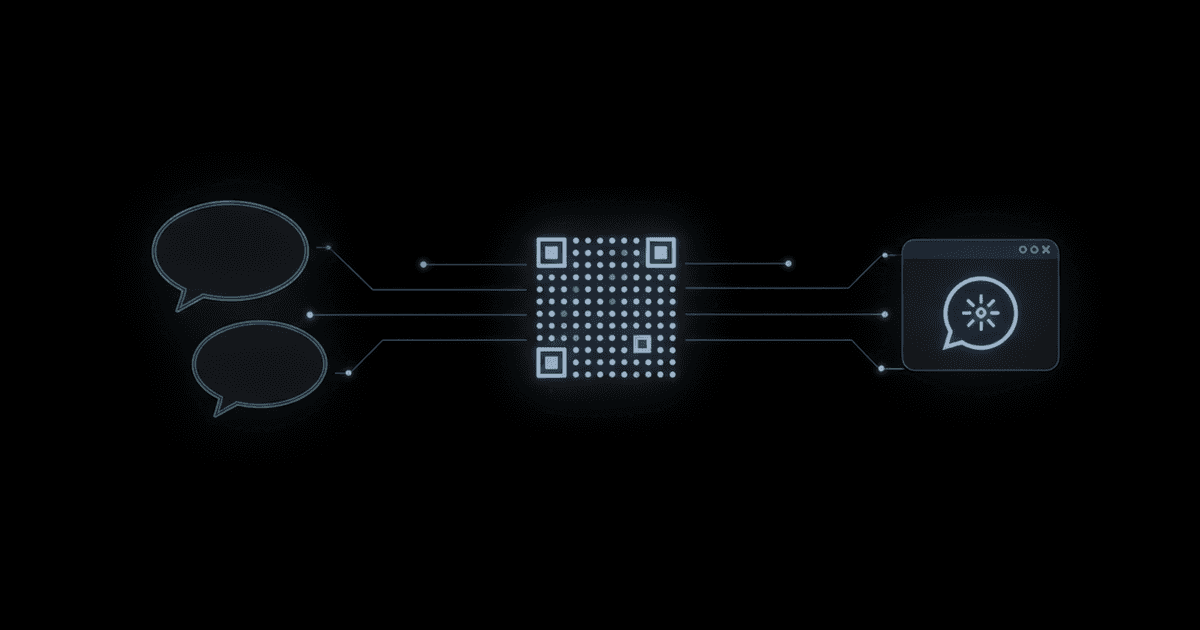
A WhatsApp MCP server lets Claude, ChatGPT or Cursor read your WhatsApp chats and send messages, media, voice notes and polls on your behalf. MCPifex hosts it for you: you link your number by QR code or pairing code, choose which of the 61 tools are allowed, and paste one URL into your AI app. It needs the Pro plan or higher.
What is a WhatsApp MCP server?
MCP, the Model Context Protocol, is how an AI app talks to outside tools. An MCP server is the piece that exposes those tools. A WhatsApp MCP server exposes WhatsApp as tools such as "list my chats", "find messages in this chat" and "send a text". The AI does not get your phone. It can only call the tools the server offers, and each call is a plain request. If the term is new, what is an MCP server explains it in a few lines.
This page covers the hosted server on MCPifex: what it can do, how linking works, how to set it up and how to use it responsibly. For a story-style walkthrough with a worked example, read the longer WhatsApp MCP guide. Hosted means MCPifex runs the server. You install nothing, and you do not keep a laptop switched on.
In effect, the AI app you already use becomes an assistant for your WhatsApp. If you want WhatsApp in Claude, you add MCPifex as a custom connector. If you want it in ChatGPT, you add it as a connector there. Either way, you stay in the AI chat and the assistant works with your messages. This is not the same thing as chatting with ChatGPT inside WhatsApp, which is a different product.
What can the WhatsApp MCP server do?
The server has 61 tools. On a new instance, 37 are on and 24 are off. The rule behind the split is simple: reading and ordinary sending are on, and anything that changes groups or your profile, or is hard to undo, starts off. You can switch any tool on or off per instance, and the gateway refuses a call to a disabled tool. The tool call format is defined in the MCP specification for tools.
| Tool group | Tools | What your AI can do | Default |
|---|---|---|---|
| Read chats, messages and contacts | 10 | List chats newest first, find a chat, find messages, find contacts, check delivery and read status, get a download link for media, read poll results, check which numbers are on WhatsApp. | On |
| Read groups | 5 | List your groups, get group info, list participants, read a group invite code or invite info. | On |
| Read profiles and connection | 6 | Fetch a profile or business profile, read your privacy settings, check whether the link is still open, list labels. | On |
| Send messages | 12 | Send text, images, video, documents, voice notes, round video notes, stickers, locations, contact cards, reactions, polls, list messages, buttons and carousels. | On |
| Housekeeping | 4 | Mark messages read or played, show a typing indicator, create a one-time upload link for a file. | On |
| Chat and status changes | 5 | Post a status, mark a chat unread, archive, edit a sent message, add or remove a label. | Off |
| Group management | 9 | Create a group, join by invite, send an invite, rename, change description, picture or settings, set disappearing messages. | Off |
| Profile changes | 4 | Update your name, picture, about text or privacy settings. | Off |
| Hard to undo | 6 | Delete a message for everyone, block a contact, leave a group, revoke an invite, add or remove group members, remove your profile picture. | Off |
One point matters before you switch anything on. The 16 sending and housekeeping tools are on by default, so a fresh instance can already send messages. If you only want your AI to read and summarise, turn those off in the third setup step.
The AI can address a chat by a plain phone number with country code, such as 2348012345678. Nothing is pushed to the AI. It sees new messages when you ask it to look, by calling a read tool. The server has no call tools, so it cannot place or answer voice and video calls.
Voice notes work in both directions. For a note you receive, the AI can get a link to the audio. If you add your own OpenAI API key to the instance, it also gets a transcript. For a note you send, the AI uploads an audio file through the one-time upload link and then sends it.
How does linking WhatsApp work: QR code or pairing code?
Linking uses the same idea as WhatsApp's own linked devices feature, the one behind WhatsApp Web. Your number becomes a linked device on your account. Your phone keeps working as usual. The portal offers two ways to link:
- QR code. The portal shows a QR code. On your phone open WhatsApp, go to Linked devices, choose Link a device and scan it. Use this when the phone is separate from the screen showing the code.
- Pairing code. If your phone is the same device you are using, enter your phone number in the portal and it shows a code. In WhatsApp, choose to link with a phone number instead and type the code in.
WhatsApp describes both flows in its own help article, how to link a device. You can see and remove linked devices from the same Linked devices screen at any time. Linking happens inside the setup wizard, and the portal checks the connection state afterwards so you know the link is open.
WhatsApp may log out linked devices that have not seen the phone for a while, so if the AI reports the connection as closed, link again from the instance page.
How do I set up the WhatsApp MCP server?
You need an MCPifex account on the Pro or Team plan. A free account can sign up and look around, but the WhatsApp server needs Pro. The pricing page has the plan details, and every linked number counts as one instance. Setup follows the four steps of the portal wizard.
- Name this instance. Open the marketplace, pick WhatsApp and name the instance, for example "My WhatsApp".
- Connection settings. Click to link your number by QR code or pairing code. You can add an OpenAI API key here if you want transcripts of voice notes you receive. It is optional.
- Choose what's allowed. Review the tool list. For a read-only start, turn off the send tools. For a normal assistant, keep the defaults and leave the 24 off tools off.
- Get connected. Create an API key. It starts with
mcpx_. Copy the gateway URL and key into your AI app.
The gateway URL is the same for every client: https://mcp.mcpifex.com/mcp. Step-by-step instructions for each client are in connect Claude, connect ChatGPT and the ChatGPT MCP guide. The instances and tools page explains how the tool switches work, and plans and limits covers instance counts. Credentials are encrypted in transit and masked in the portal once saved.
What can I ask Claude or ChatGPT to do with WhatsApp?
Once connected, you write normal sentences. The AI picks the tools. Here are prompts that fit the default tool set:
- "Summarise my unread chats from today and list anything that needs a reply."
- "Find the last thing Sara said about Friday and draft a short answer. Show it to me before sending."
- "In the family group, find the message with the flight times and give me the details."
- "Send Omar the address as a location message."
- "Create a poll in the team chat asking which day works for the review: Tuesday, Wednesday or Thursday."
- "Did my message to Ahmed get delivered and read?"
With Claude this works as a custom connector, so it fits a WhatsApp Claude workflow where you catch up on chats between other tasks. With ChatGPT it works as a connector too. Both read and send through the same tools, so the prompts above work in either app.
A good habit is to ask the AI to show you any message before it sends it, at least to someone new. The AI can phrase things in ways you would not, and a sent message cannot be unsent by the AI unless you enable the delete tool.
Is it safe, and does it follow WhatsApp's rules?
Treat this as an unofficial connection. It links your number as a device in the same way WhatsApp Web does, and it is not an official WhatsApp product. MCPifex is not affiliated with or endorsed by WhatsApp. WhatsApp's Terms of Service restrict automated access to its services and non-personal use, and WhatsApp may restrict or ban a number that automates messaging. That risk sits with the number you link. Use a number you can afford to lose access to.
The server is built for personal-assistant use: reading your own chats, drafting replies, sending the occasional message or file. It is not a tool for bulk messages, cold outreach or marketing blasts. For business messaging at volume, WhatsApp's official route is the WhatsApp Business Platform, which is a separate product with its own rules (see the Cloud API overview).
These habits keep things calm and in your control:
- Keep send tools off until you need them. Start read-only, then switch on sending when you have a task for it.
- Leave the 24 off tools off. Group management, profile changes and the six hard-to-undo tools are off for a reason.
- Review before sending. Ask the AI to show a draft first.
- Give WhatsApp its own API key. You can revoke it without touching your other servers.
- Mind prompt injection. A message is text written by someone else, and your AI reads it. A message can contain instructions aimed at the AI. Read prompt injection through MCP tools and controlling what AI agents can reach for the full picture.
The tool switches are enforced by the gateway, not by the AI's good behaviour. If a tool is off, the call is refused.
Frequently asked questions
No. It is an unofficial linked-device connection, similar to WhatsApp Web, and is not affiliated with or endorsed by WhatsApp. WhatsApp may restrict numbers that automate messaging. For high-volume business messaging, use the official WhatsApp Business Platform.
Pro or higher. The Free plan cannot create a WhatsApp instance. Pro is $19 a month or $190 a year with 10 instances, and Team is $49 a month with 30 instances. Each linked number is one instance.
Yes. Both connect to the same MCPifex gateway URL with your API key, and both see the same tools you left on. Setup guides are on the connect Claude and connect ChatGPT pages.
No. It only acts when your AI app calls a tool, and sending tools can be turned off per instance. Nothing is pushed to the AI either, so it reads new messages only when you ask it to.
No calls: the server has no call tools. The AI can read messages sent and received after you link the number. Older chats are not imported by MCPifex, and any earlier history that WhatsApp syncs to the linked device should not be relied on.
Run this server through MCPifex
Run hosted MCP servers behind one endpoint and choose exactly which tools your AI can use.