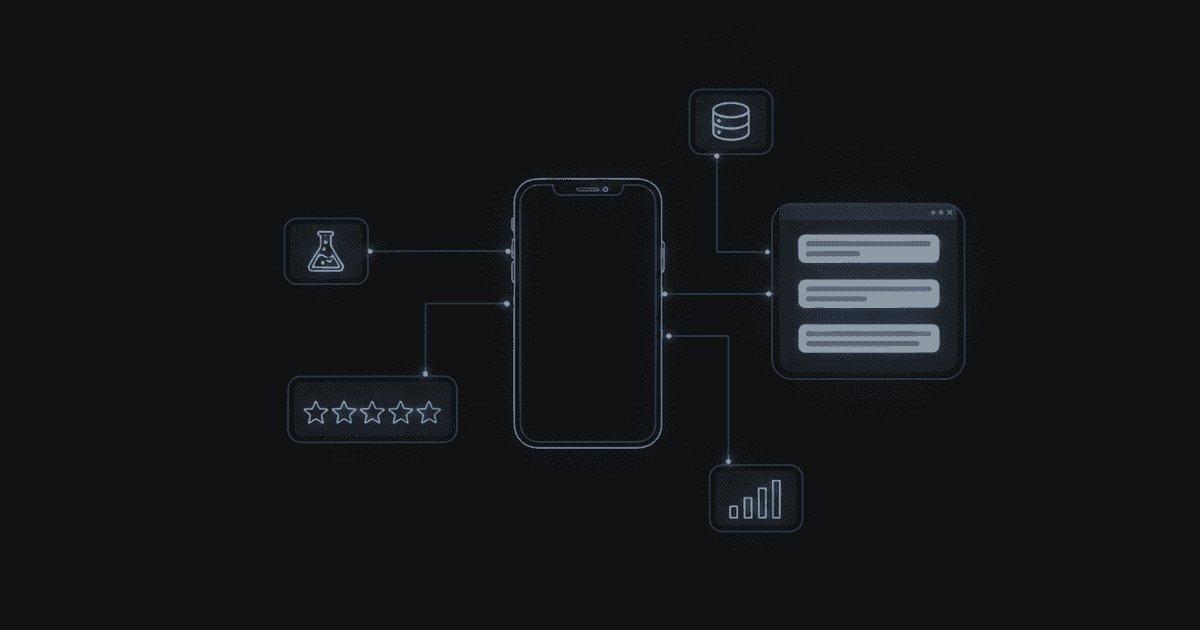
An App Store Connect MCP server lets Claude or ChatGPT read your App Store Connect account and answer questions about it: customer reviews, sales and analytics reports, TestFlight feedback, version status and in-app purchases. MCPifex hosts the server for you. You paste in an API key, keep the write tools off, and add one URL to your AI app.
What can you ask an App Store Connect MCP server?
MCP, the Model Context Protocol, is how an AI app calls outside tools. This server gives the AI 88 tools that map to App Store Connect. The AI never sees a login page. It calls a tool, such as "list customer reviews for this app", and reads the result. New to the idea? What is MCP explains it in a few minutes, and what is an MCP server defines the term.
For an indie app maker, the useful questions fall into six groups:
- Reviews. "Summarize the one- and two-star reviews from the last month and group them by complaint." It is a good first prompt.
- Sales and analytics reports. Download sales and trends reports (units, proceeds) and finance reports (money Apple paid, by region), then ask for trends in plain language. Analytics report requests and segments are readable too.
- TestFlight. List builds, beta groups, testers and beta feedback with device model and OS version. You can ask which build a tester complained about.
- Versions and review state. See each version and whether it sits in PREPARE_FOR_SUBMISSION, in review or READY_FOR_SALE, plus what every app ships live today.
- In-app purchases. Read products, localizations, price schedules and availability.
- Screenshots and listing text. Read screenshot sets and per-locale metadata such as description, keywords and what's-new text, or export the whole listing to review it.
Writes exist too, for example updating release notes or inviting a tester, but they ship switched off. More on that below.
Which tools does the App Store Connect MCP server include?
The server has 88 tools. 50 only read and are on by default. The other 38 can change your account and are off by default. Eight of those 38 are destructive, such as deleting screenshots or revoking certificates.
| Group | Reads (on) | Example read tools | Writes (off by default) |
|---|---|---|---|
| Apps, versions, review state | Read | list_apps, get_app, list_versions, get_version, list_live_versions, list_review_submissions | Create and update versions, attach a build, submit for review, release a version |
| Listing text and age rating | Read | list_version_localizations, get_version_localization, list_app_info_localizations, get_age_rating_declaration, export_listing | Update description, keywords and what's-new, age rating and categories, apply a listing |
| Screenshots | Read | list_screenshot_sets, list_screenshots, get_screenshot | Upload and reorder screenshots; deleting a screenshot or set is destructive |
| Customer reviews | Read | list_customer_reviews | None in this group |
| Sales, finance, analytics | Read | download_sales_report, download_finance_report, get_vendor_number, list_analytics_reports, download_analytics_report_segment | Create an analytics report request |
| TestFlight | Read | list_builds, list_beta_groups, list_beta_testers, list_beta_feedback | Create a beta group, invite a tester, add a tester to a group; removing a tester is destructive |
| In-app purchases and pricing | Read | list_in_app_purchases, get_in_app_purchase, get_iap_price_schedule, get_app_price_schedule | Change prices, update IAP text, submit an IAP for review |
| Account setup | Read | list_users, list_bundle_ids, list_capabilities, list_devices, list_certificates | Register devices, create bundle ids or certificates; revoking a certificate is destructive |
Names above are shortened. In the portal each tool carries an app_store_connect_ prefix, and you see its description and risk level next to a toggle. You can turn any tool on or off per instance, and the gateway refuses a call to a tool you left off. How that works is covered in instances and tools.
How do you create an App Store Connect API key?
The server signs in with an App Store Connect API key, the same kind of key Apple documents for automation. You create it in your own account, so you decide how much it can do. The steps below follow Apple's Creating API Keys for App Store Connect API guide. Apple changes its screens now and then, so check that page if a label differs.
- Sign in to App Store Connect as the Account Holder or an Admin. API access must first be requested by the Account Holder. Only the Account Holder and Admins can generate team keys.
- Open Users and Access, then the Integrations tab, then App Store Connect API.
- Under team keys, generate a new key and give it a name you will recognize, such as "MCPifex read-only".
- Choose an access role (see the next section).
- Copy the Issuer ID, the UUID shown above the keys table, and the 10-character Key ID of the new key.
- Download the
.p8private key file. Apple lets you download it once. If you lose it, revoke the key and make a new one.
You now have the three values the server needs: key_id, issuer_id and private_key. Treat the .p8 file like a password. Do not paste it into a chat with your AI.
Which role should the key have?
Give the key the smallest role that answers your questions. Apple lists the available roles in its roles and permissions reference. A practical starting point:
- Reviews: Customer Support is the natural fit. TestFlight: App Manager or Developer. For versions and in-app purchases, start with one of those and test which questions work. Apple decides what each role may read, so a role that is too small returns an error rather than data.
- Sales and finance reports: these need a role that can see reports, such as Sales or Finance. Sales and finance calls also need your vendor number. The
get_vendor_numbertool reports which number is in use and whether the key can read it. - Avoid Admin unless you plan to turn on write tools that need it. The key's role is the outer limit, so a broad role leaves less margin if a write tool is switched on by mistake.
Two layers protect you. Apple's role caps what the key can do at all. MCPifex's tool switches cap what your AI may call. Use both. You can also keep two keys: a read-only one for daily questions, and a second instance with a broader role for the rare day you want the AI to edit release notes.
How do you connect Claude to App Store Connect with MCPifex?
The portal wizard has four steps. Nothing is installed on your computer.
- Name this instance. Pick App Store Connect from the marketplace and name it, for example "My apps".
- Connection settings. Enter the Key ID and Issuer ID, and paste the full contents of the
.p8file, including the BEGIN and END lines, into the private key field. The field is masked in the UI. - Choose what's allowed. The 50 read tools are on. Leave the 38 write tools off for now.
- Get connected. Copy your MCPifex API key and the gateway URL,
https://mcp.mcpifex.com/mcp.
Then add that URL to your AI app. Connect Claude covers Claude.ai custom connectors, and the Claude docs page has the screens. ChatGPT, Claude Code and Cursor work the same way; see connect your AI. The API keys and authentication page explains the two ways to pass your key. You can start on the Free plan, which includes 3 instances and no card. Sign up at the MCPifex portal.
Your credentials are encrypted in transit and masked in the UI.
What prompts work well with an App Store Connect API and AI?
Start with questions that only read. Each prompt below uses read tools, so it works with the default settings.
- "List my apps and tell me which version of each is live today."
- "Pull the customer reviews for my app from the last 30 days. Group the negative ones by theme and quote one example for each."
- "Download last month's sales report. Which app and which country earned the most proceeds? Compare with the month before."
- "Show TestFlight feedback for the latest build. Which device models and OS versions appear most?"
- "List my in-app purchases and their price schedules. Flag any that have no localization."
- "Export my current listing and tell me which keywords repeat between the title, subtitle and keyword field."
- "Is version 2.4 waiting on review, or stuck in a state I need to act on?"
Two habits improve answers. Name the app and the date range, because the server returns exactly what you ask for. And ask the AI to show the numbers behind a conclusion so you can check them against App Store Connect.
Once read-only works, a Search Console connection pairs well for acquisition questions. See the Google Search Console MCP server.
Is it safe to give an AI access to App Store Connect?
It is safe when you limit it, and the limits are yours to set. The risk is an AI that submits, releases or deletes something you did not intend.
- Writes start off. All 38 write and destructive tools are off by default. You turn on only the ones you want. The eight destructive tools, such as
revoke_certificateanddelete_screenshot_set, deserve a separate decision each. - Least-privilege key. A read-oriented Apple role makes writes fail even if a tool were switched on by mistake.
- Tools outside the catalog are refused. The gateway only passes calls to tools that exist and are allowed. See how to control what AI agents can reach.
- Call logs. Each instance keeps a log of calls, so you can see what the AI did.
- Revoke fast. If anything looks wrong, revoke the key in MCPifex (new calls stop within about a minute) and delete the API key in App Store Connect.
Review text is written by strangers, and a hostile review could contain instructions aimed at your AI. Keep write tools off while the AI reads reviews, and read prompt injection through MCP tools for the reasoning. For a broader checklist, see the MCP security checklist.
What are the limits?
- Apple sets the data. Reports arrive on Apple's schedule, and analytics reports need a request before data appears. A fresh request can take time to produce its first report.
- The AI can misread a table. Sales reports are tab-separated files with many columns. Ask for a summary and spot-check the totals.
- No reply to reviews. The server reads customer reviews. It has no tool to post a response.
- One account per instance. A second App Store Connect team means a second instance.
- Plans limit instances only. Gateway calls are unlimited on every plan; Free gives 3 instances, Pro 10 and Team 30. See pricing.
Frequently asked questions
It is a tool server that lets an AI app such as Claude or ChatGPT call App Store Connect functions: list apps, read customer reviews, download sales reports, check TestFlight feedback and more. MCPifex hosts it, so you only supply an API key.
Only if you allow it. 50 tools read and are on by default. The 38 write tools, including submit for review, release version and delete screenshot, are off by default. Use a read-oriented Apple role for the key as a second lock.
The smallest that answers your questions. Reviews and TestFlight work with a lower role. Sales and finance reports need a role that can see reports and your vendor number. Avoid Admin unless you need it. Apple documents the roles on developer.apple.com.
No. MCPifex runs the server. You enter the Key ID, Issuer ID and the .p8 private key in the portal, then add the gateway URL to Claude as a custom connector.
Apple allows the download once. Revoke that key in App Store Connect, generate a new one, and update the instance in MCPifex with the new Key ID and private key.
Sources
- Apple: Creating API Keys for App Store Connect API
- Apple: App Store Connect API documentation
- Apple: App Store Connect roles and permissions
- Model Context Protocol specification: Tools
Run this server through MCPifex
Run hosted MCP servers behind one endpoint and choose exactly which tools your AI can use.