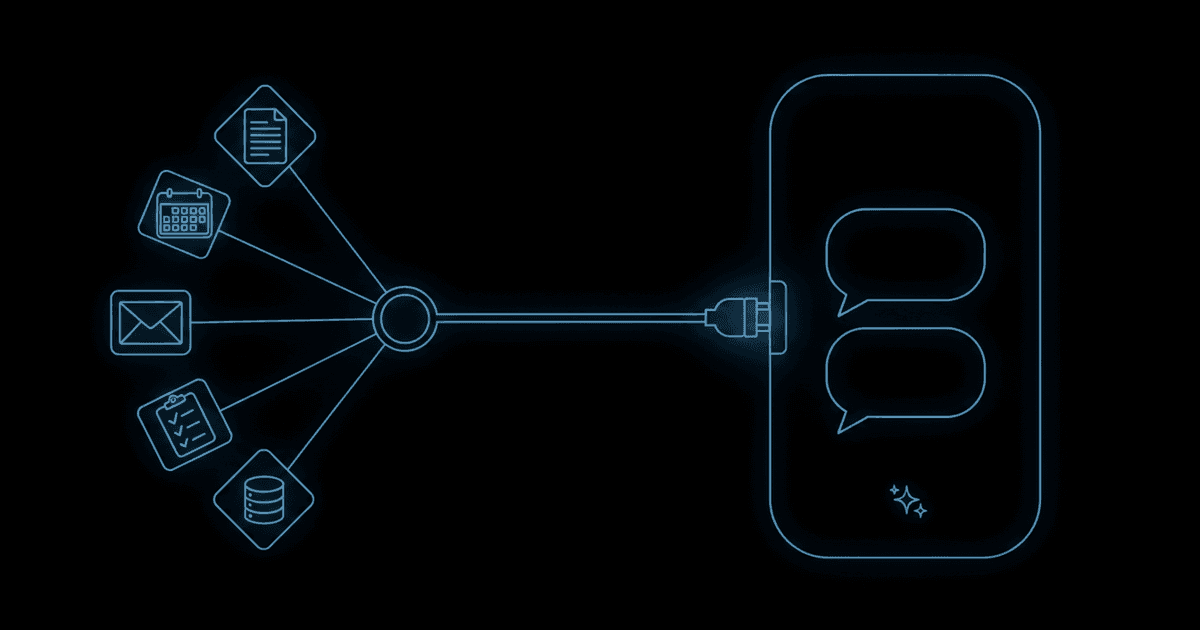
Claude connectors are integrations that let Claude read from and act in other apps, such as Google Drive, Gmail, Notion or Linear, from inside a chat. You find them in Claude under Customize > Connectors, or from the "+" menu in any conversation. Anthropic lists them in a connectors directory, and you can add your own with a custom connector.
What are Claude connectors, and where do you find them?
A connector is a permissioned link between Claude and one outside service. Once it is on, Claude can search your documents, read your calendar, create an issue or fill a design template, depending on what the connector allows. Under the hood, connectors are built on the Model Context Protocol (MCP), an open standard for how an AI app talks to tools and data. If that term is new, what MCP is covers it in plain language.
Anthropic's help center describes two paths. Directory connectors are pre-built and listed with their use cases and capabilities; you click Connect and sign in. Custom connectors point to a remote MCP server URL that you or someone else runs. Both appear in the same list inside Claude. According to the Anthropic help article on connectors, web connectors are available to all users on Claude, Cowork, Claude Desktop and Claude Mobile, and custom remote connectors work on Free, Pro, Max, Team and Enterprise plans (Free is limited to one custom connector).
To find them:
- In a chat, click "+" at the lower left (or type "/"), hover over Connectors, and choose Manage connectors. The "+" next to Connectors opens the directory.
- In settings, go to Customize > Connectors.
- To use one in a single conversation, open the "+" menu, hover over Connectors, and toggle it on.
The directory is large and changes often. At the time of writing, Anthropic's connectors page shows 1,045 connectors (October 2026), each marked "Anthropic verified". Treat any count, including this one, as a snapshot.
Which Claude connectors are worth turning on first?
Start with the connectors that hold the information you already ask Claude about: files, mail, calendar and your team's task list. Each one below appears on Anthropic's connectors page; the descriptions are the ones shown there. Rankings you see elsewhere are often written by companies that sell a connector, so this list is grouped by the job you want done instead of ranked by vendor.
Documents, mail and calendar
- Google Drive lets Claude search, read and upload files. Good for "summarize the three proposals in my Drive folder".
- Gmail drafts replies, summarizes threads and searches your inbox.
- Google Calendar manages schedules and helps coordinate meetings.
- Microsoft 365 reaches SharePoint, OneDrive, Outlook and Teams. It is the pick if your company runs on Microsoft instead of Google.
- Box searches, edits and analyzes content stored in Box.
Notes, projects and tasks
- Notion searches and updates your workspace.
- Linear manages issues, projects and team workflows. A plan made in chat can land in the real backlog.
- Asana coordinates tasks, projects and goals.
- monday.com covers project management and CRM.
- Atlassian searches and updates Jira and Confluence.
Communication and meetings
- Slack sends messages, creates canvases and fetches data.
- Zoom for Claude searches, recaps and acts on Zoom meetings.
- Granola is an AI notepad for meetings.
Design, sales and building
- Canva searches, creates, autofills and exports designs.
- Figma generates diagrams and code from Figma context.
- Adobe offers design and editing tools.
- HubSpot gives Claude CRM context for answers and actions.
- Shopify helps you build, manage and analyze a store.
- Supabase manages databases, auth and storage.
- Vercel analyzes, debugs and manages deployments.
A practical way to choose: pick two or three, not twenty. A meeting-prep workflow with Google Calendar, Gmail and Google Drive covers a lot of ground. A planning workflow with Notion and Linear covers another. Every extra connector adds tools Claude has to weigh when it decides what to call, and it adds one more account that can be misused if something goes wrong.
What if the tool you need is not in the Claude connector directory?
Then use a custom connector. Any service that exposes a remote MCP server can be added by its URL, whether or not Anthropic lists it. This matters most for data the big directories rarely cover: your own database, analytics and search data, mobile app dashboards and messaging.
The catch is the work behind the URL. A custom connector needs a server that is reachable over the public internet, because Claude connects from Anthropic's cloud, not from your laptop. If you are not a developer, the hard part is building and hosting that server.
One option is a hosted gateway. MCPifex runs real MCP servers for you and gives Claude one URL to add as a custom connector, with you choosing which tools are allowed. Its setup is on connect Claude. The servers live today are:
- PostgreSQL to query, inspect and describe your database. The write tool is off by default.
- Google Search Console with 19 tools for performance, URL inspection, indexing and sitemaps, connected through Google sign-in.
- Google Trends for interest over time, compared terms, related queries and trending now, by region. Google may rate-limit requests.
- App Store Connect with 88 tools for apps, versions, TestFlight, in-app purchases, reviews and reports. Its 38 write tools are off by default.
- WhatsApp with 61 tools to read chats, contacts and groups and send text, media, voice and polls. It needs the Pro plan or higher.
MCPifex's Free plan includes three instances with no card. Other hosted gateways and self-hosting also work; the best MCP servers roundup compares the routes.
How do you add a custom connector to Claude in 4 steps?
Get the remote MCP server URL, open Customize > Connectors, click "+ Add" then "Add custom connector", and enter a name and the URL. If the server uses a fixed key instead of OAuth, add it under Request headers where your organization has that beta option; otherwise use a key-in-URL form if the server offers one. Then click Add and toggle the connector on from the "+" menu in a chat. Anthropic's custom connector instructions have the current screens, and our Claude custom connectors guide covers sign-in choices and troubleshooting.
On Team and Enterprise plans an owner adds the connector for the organization, and each member then connects individually. Check Anthropic's article for where that setting sits in your plan. To edit a connector, remove it and add it again with the new details.
Are Claude connectors safe to use?
Directory connectors and custom connectors carry different levels of assurance, and your own habits matter more than either. These are the points Anthropic's help center makes, and the ones worth acting on.
- Claude inherits your permissions. If you cannot open a file or record in the source system, neither can Claude through the connector. It also means anything you can delete, Claude may be able to delete.
- Custom connectors are not verified by Anthropic. Anthropic warns that malicious servers may hide prompt injections in tool inputs or outputs, and that developers can change tool behavior without notice. Connect only to servers you trust.
- Review each approval. Use "Allow always" only for tools you trust to run unsupervised, and use the "Search and tools" menu to switch off tools you do not need.
- Watch research mode. Anthropic notes that Research can call connector tools without asking, so disable write tools before using it.
- Third-party handling is separate. Connected services process data under their own terms.
- Clean up. Disconnect anything you no longer use from Customize > Connectors.
On Team and Enterprise plans, owners can set each connector's tools to Always allow, Needs approval or Blocked under Tool permissions. Those limits apply to everyone and can only narrow access.
If you add servers beyond the directory, keep the tool list short. A database connector that can only read is far easier to trust than one that can also write. For the attack that matters most here, read prompt injection through MCP tools, and for a checklist see the MCP security checklist. The MCP project's own authorization specification explains how the OAuth sign-in step works.
Which Claude connector should you pick? A summary
You want Claude to...ConnectorType
Search and read your files
Google Drive, Box, Microsoft 365
Directory
Handle mail and scheduling
Gmail, Google Calendar
Directory
Update notes and docs
Notion, Atlassian
Directory
Manage tasks and issues
Linear, Asana, monday.com
Directory
Post and recap conversations
Slack, Zoom for Claude, Granola
Directory
Make or inspect designs
Canva, Figma, Adobe
Directory
Work with your store, CRM or deploys
Shopify, HubSpot, Vercel, Supabase
Directory
Query your own PostgreSQL data
PostgreSQL server
Custom (hosted)
Read search performance and indexing
Google Search Console server
Custom (hosted)
Check keyword interest
Google Trends server
Custom (hosted)
Manage an iOS app
App Store Connect server
Custom (hosted)
Read and send WhatsApp messages
WhatsApp server
Custom (hosted)
How do you get more out of Claude connectors once they are on?
Connecting a tool is the easy part. Results depend on how you ask and how much you let Claude touch. Four habits make a visible difference.
- Name the source in your request. "Search Google Drive for the Q3 pricing deck" gives Claude a clear tool to reach for. A vague request leaves it guessing, and it may answer from memory instead of your data.
- Chain two connectors for one job. Ask Claude to read a thread in Gmail, check Google Calendar for open slots, and draft a reply that proposes times. The value comes from combining them.
- Start read-only. Run a new connector for a week with only its read tools on. Once you trust the answers, enable the write tools you actually need, one at a time.
- Toggle per conversation. Turn a connector on only in the chats that need it. A smaller tool list means fewer chances for a wrong call and less to review.
If a connector fails, the usual causes are an expired sign-in, a missing permission in the source app, or a custom server that is not reachable from the public internet. Disconnect and reconnect first, then check the permissions you granted during sign-in. For custom servers, the custom connector guide lists the common errors, and the MCP tools documentation explains how a server describes what Claude may call.
How do you decide between a directory connector and a custom one?
Use the directory when the service you need is there. Setup is a click and a sign-in, the entry is marked Anthropic verified, and the listing states what the connector can read and write. Choose a custom connector only when the directory has no entry, or when you need a tool set the directory version does not offer.
A good test before adding either kind is to ask what the worst tool call would be. For Gmail, it is a sent message. For a database, it is a dropped table. If that outcome is unacceptable, either block the tool or do not connect. For a wider view of Claude and MCP together, see Claude MCP explained.
Frequently asked questions
Claude connectors are integrations that let Claude read from and act in other apps such as Google Drive, Gmail, Notion or Linear. They are built on the Model Context Protocol and are managed under Customize > Connectors in Claude.
Anthropic's help center says web connectors are available to all users, and custom remote connectors work on Free, Pro, Max, Team and Enterprise plans, with Free limited to one custom connector. Third-party services may have their own plan requirements.
Open the "+" menu in a chat, hover over Connectors, choose Manage connectors, then click the "+" next to Connectors. You can also go to Customize > Connectors. Anthropic publishes a browsable list at claude.com/connectors.
A directory connector is pre-built and listed by Anthropic. A custom connector points to any remote MCP server URL you provide. Anthropic does not verify custom connectors, so connect only to servers you trust.
Only if the connector has write tools and you approve or allow them. Claude inherits your permissions in the source system. Review each approval, switch off write tools you do not need, and be careful with Allow always and research mode.
Ready to try it?
Run hosted MCP servers behind one endpoint and choose exactly which tools your AI can use.