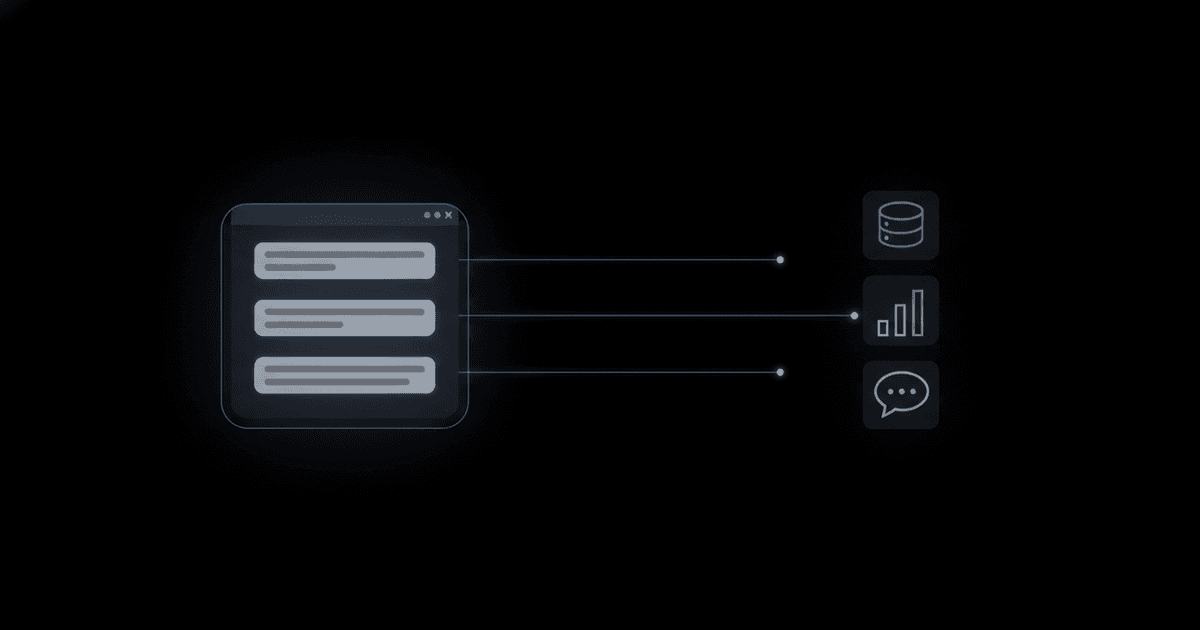
Claude MCP means using the Model Context Protocol to let Claude reach tools and data outside the chat: your database, Search Console, a messaging app. Yes, Claude supports MCP on claude.ai, Claude Desktop, Claude Code and the mobile apps. You add a server once, and Claude can call its tools when a question needs them.
What is MCP in Claude?
MCP is an open standard, created by Anthropic, that lets AI apps connect to tools and data sources. The official introduction compares it to a USB-C port for AI: one plug shape that works for many devices. Without it, Claude only knows what is in your conversation and its training. With it, Claude can look things up and act on your behalf.
Three words matter. A client is the app you chat in, such as Claude. A server is a small program that exposes a service, such as a database or an analytics account. A tool is one action the server offers, such as "run a read-only query" or "list my sitemaps". The MCP architecture overview describes how these parts talk to each other.
Claude calls these connections connectors in its apps. You will also see the phrase "Claude integrations" used for the same idea. If you want the plain-English background first, read what is MCP.
Does Claude support MCP on every surface?
Yes, with differences in how you add a server. There are two kinds of server, and the kind decides where it works.
- Remote servers live on the internet at a URL. Claude connects to them from Anthropic's cloud, so they work on claude.ai, Claude Desktop and the mobile apps once added to your account.
- Local servers run on your own computer. They work in Claude Desktop and Claude Code, not on claude.ai or your phone.
Here is the surface-by-surface picture.
Where you use ClaudeRemote serversLocal servers
claude.ai in the browser
Yes, as connectors
No
Claude Desktop
Yes, same account connectors
Yes, as desktop extensions or config entries
Claude mobile apps
Yes, once added to your account
No
Claude Code (terminal)
Yes, HTTP servers
Yes, started as a command
The mobile row follows Anthropic's support article, which says remote connectors are set up through your Claude account and work across clients, including the mobile apps. You add them on the web or desktop, then use them from your phone.
How do I add an MCP server to claude.ai?
Use a custom connector. Open Customize, then Connectors, click Add, choose Add custom connector, enter a name and the remote MCP server URL, and click Add. Anthropic's custom connectors guide has the current screens. Our custom connectors guide covers sign-in options, request headers and common errors.
To use the connector, press the plus button in a chat, choose Connectors, and switch it on for that conversation.
Anthropic also keeps a directory of connectors it has reviewed. If the service you need is listed, installing from the directory is the simplest path because there is no URL to find.
Which Claude plans allow custom connectors?
According to Anthropic's support article, custom connectors using remote MCP are available on Free, Pro, Max, Team and Enterprise plans. The limits are different on each:
- Free: limited to one custom connector.
- Pro and Max: you add connectors yourself under Customize, then Connectors.
- Team: only Owners and Primary Owners can add a connector. Members then click Connect to sign in.
- Enterprise: Owners, Primary Owners and people with a custom role that includes Manage access to Libraries can add connectors.
Plan rules change, so check the support page before you build a workflow around them. One more requirement matters: connections to remote servers come from Anthropic's cloud, not from your device. A server on a private network, behind a VPN or a firewall will not connect unless you allow Anthropic's IP addresses.
How do I use MCP servers in Claude Desktop and Claude Code?
Claude Desktop gives you two routes. Remote connectors you added to your account appear automatically. For local servers, Anthropic packages them as desktop extensions: open Settings, then Desktop app, choose Manage next to Extensions, browse the directory and click Install. The local MCP servers article says extensions are single-click packages that run on your computer, and sensitive fields are kept in the operating system's secure storage. Developers can still edit claude_desktop_config.json by hand. Our Claude Desktop guide covers both the local and remote paths.
Claude Code is the terminal tool for developers. You add a server with a command, choose an HTTP transport for hosted servers or a command for local ones, and check status with claude mcp list. The Claude Code MCP documentation is the reference, and our Claude Code guide gives copy-ready commands. If you never open a terminal, you can skip this surface.
What are the three ways to get an MCP server for Claude?
You do not have to write a server. Most people pick one of three routes.
- Official connectors. Pick a vendor-built or Anthropic-reviewed connector from the directory. It is the least effort, but you are limited to what is listed. Our best Claude connectors roundup shows what is worth turning on.
- Install a server locally. Run an open-source server on your own machine. You get any server that exists, but you handle Node or Python, updates and credentials, and it stops working when your laptop is closed. Phones and the browser app cannot reach it.
- Use a hosted server. A hosting service runs the server and gives you a URL to paste into Claude as a custom connector. You pick a server such as PostgreSQL, save your credentials, choose which tools are allowed, and paste one URL into Claude. Setup for Claude is on the Claude connect page.
Pick by who you are. If you want a popular service and nothing else, use an official connector. If you enjoy tinkering and only use Claude Desktop on one machine, go local. If you want your own database or accounts reachable from the browser and phone without installing anything, hosted is the practical option. Our post on build versus buy MCP hosting compares the costs in detail.
Is it safe to connect MCP servers to Claude?
It is safe when you stay in control of what each server can do. Anthropic states that custom connectors let Claude reach services it has not verified, so connect only to servers you trust. Three habits cover most of the risk.
- Read the permission prompts. Claude asks before it runs a tool. Use "Allow always" only for servers and tools you fully trust, and turn off tools you do not need in the Search and tools menu.
- Keep write tools off. A read-only query cannot delete anything. A tool that sends messages or edits records can. Anthropic notes that in Research mode Claude can call connector tools without asking each time, so disable any tool that writes to an outside app.
- Beware hidden instructions. A malicious server, or text pulled from a web page or message, can try to steer Claude. Review what Claude is about to do, especially when it handles untrusted content. We cover this in prompt injection through MCP tools.
To revoke access, disconnect the connector in Claude's settings or in the other service's security settings. For a broader checklist, see the MCP security checklist.
How do permissions work for each tool?
Each connector exposes a list of tools, and Claude asks before it runs one unless you chose "Allow always". Open the Search and tools menu in a chat to see the list for a connector, switch single tools off, or set one to ask first. Treat read tools and write tools differently. Let read tools run freely once you trust the server, and keep write tools on approval so you see each change before it happens.
On Team and Enterprise plans an owner can also set tool permissions for the whole organization, and those limits can only narrow what members get. A short tool list is easier to review than a long one, so enable only what the task needs.
What can I actually do with Claude MCP?
Here are five practical examples that need no coding once the server is connected. Each one maps to a server you can get from a hosted server such as MCPifex, and any equivalent server works the same way.
- Ask your database a question. "How many customers signed up last week, by plan?" Claude writes the SQL, runs a read-only query and shows the answer. See ask your database in plain English and the PostgreSQL server.
- Review Search Console. "Which pages lost clicks this month, and are any not indexed?" Claude reads performance and URL inspection data and summarizes it. Details are on the Google Search Console server page.
- Check Google Trends. "Is interest in this topic rising, and which related queries are growing?" Claude compares terms over time and by region. Google may rate-limit requests, so expect the occasional retry. See the Google Trends server.
- Manage App Store Connect. "Which reviews this week mention crashes, and what is the latest TestFlight build?" Claude reads apps, versions and reviews. Keep the write tools off unless you mean to change something. See the App Store Connect server.
- Work with WhatsApp. "Summarize the unread chats from my customer group." Claude reads chats and contacts, and can send messages if you allow it. The hosted WhatsApp server needs the Pro plan or higher. Read WhatsApp MCP for the setup.
The pattern repeats: you connect a source, choose the tools, then ask in plain language. Claude decides which tool fits the question.
What if a connector will not work?
Start with the basics. Confirm the URL is the remote server address and not a web page. Check that the server is reachable from the public internet, because Anthropic connects from its cloud. Re-authenticate if sign-in expired, and make sure the connector is switched on for the current chat. If you added a local server, restart Claude Desktop so it reloads the config. On Free plans, check you have not already used your one custom connector.
Two more symptoms are common. If Claude lists the connector but never calls it, the tool may be switched off in the Search and tools menu, or your question may not name the source. Ask directly: "Use the PostgreSQL connector to count last week's signups." If a call fails partway, the server may have timed out or the upstream service may have rejected your sign-in, so reconnect and try a smaller request first.
For deeper checks, the troubleshooting guide lists the common errors and what they mean.
Quick answers
Yes. Claude supports MCP in claude.ai, Claude Desktop, Claude Code and the mobile apps. Remote servers work across the web, desktop and mobile through your account. Local servers run on your computer and work in Claude Desktop and Claude Code.
It is a program that gives Claude access to a tool or data source, such as a database or an analytics account. The server lists the actions it offers, called tools, and Claude calls them when your question needs them. Servers run either on your computer or at a URL on the internet.
No. Anthropic's support article says custom connectors using remote MCP are available on Free, Pro, Max, Team and Enterprise plans, with Free limited to one custom connector. On Team plans only Owners can add connectors. Check the support page for current rules.
They describe the same thing. Anthropic's apps call them connectors, while many guides say Claude integrations. Both mean a link between Claude and an outside service, built on MCP for custom and directory connectors.
Yes, for remote servers. Add the connector through your Claude account on the web or desktop, then use it from the mobile app. Local servers on your computer are not available on a phone.
Ready to try it?
Run hosted MCP servers behind one endpoint and choose exactly which tools your AI can use.