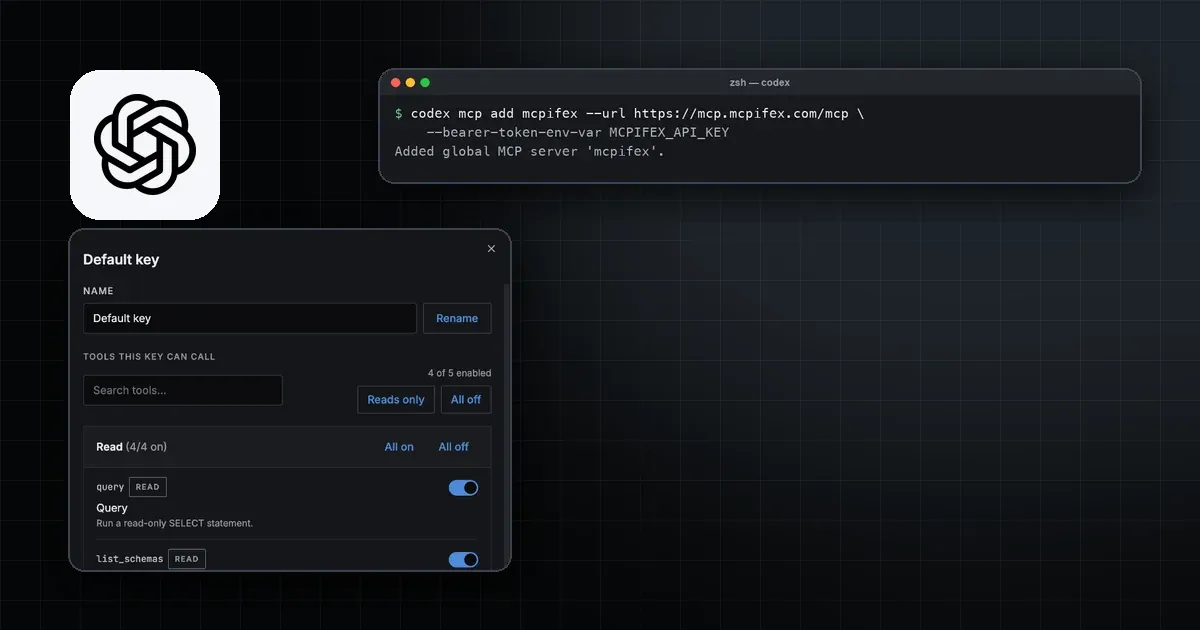
To add an MCP server to OpenAI Codex, run codex mcp add with a name. Use --url for a remote server, or -- followed by a command for a local one. Codex saves the server as a [mcp_servers.<name>] table in ~/.codex/config.toml. The Codex CLI, the IDE extension and the ChatGPT desktop app all read that file, so one setup covers all three.
Step by step
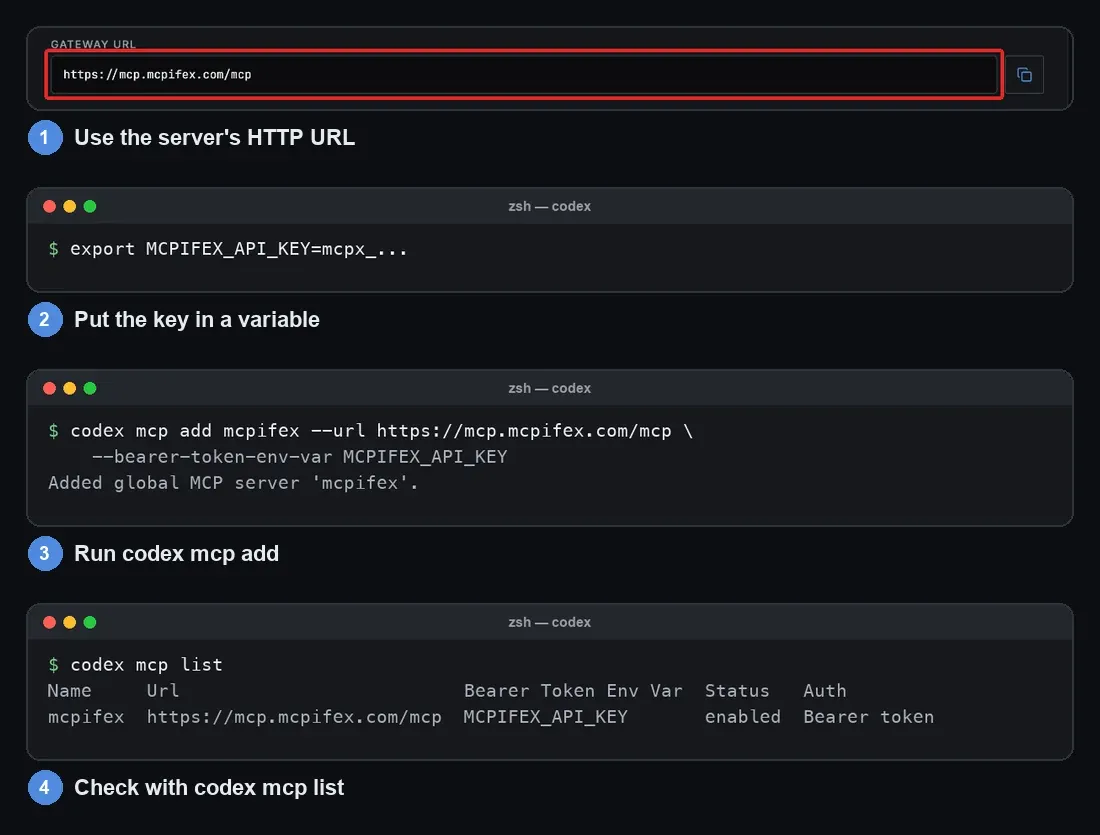
- Pick a transport. A local server runs as a process that Codex starts over stdio, so you give it a command. A hosted server such as MCPifex at
https://mcp.mcpifex.com/mcpuses Streamable HTTP, so you give it a URL. - Put the key in an environment variable. For a remote server with a bearer token, export the key in your shell, for example
export MCPIFEX_API_KEY=mcpx_.... Codex reads the variable at run time. - Run codex mcp add. Use
codex mcp add mcpifex --url https://mcp.mcpifex.com/mcp --bearer-token-env-var MCPIFEX_API_KEY. Only the variable name is written toconfig.toml. - Verify the connection. Run
codex mcp listin a terminal, or type/mcpin the Codex TUI to see active servers.
How do you add MCPifex to Codex with one command?
Say you have created an instance in the MCPifex portal and generated an API key. Export the key, then add the server:
export MCPIFEX_API_KEY=mcpx_...
codex mcp add mcpifex --url https://mcp.mcpifex.com/mcp \
  --bearer-token-env-var MCPIFEX_API_KEY
Codex sends the variable's value as Authorization: Bearer <value> on every request. The secret never lands in the config file, which matters if you sync dotfiles or commit a project config. Add the export line to your shell profile so new terminals have it. Codex only sees the variable if it was set in the shell that started Codex.
Anyone holding the key can call the tools enabled for it. If it leaks, revoke that one key in the portal. Your other keys keep working.
How do you configure Codex MCP servers in config.toml?
For more control, edit the file yourself. User scope lives in ~/.codex/config.toml. You can also scope servers to one repository with .codex/config.toml, but Codex only loads that file for trusted projects. This is the TOML that the command above writes:
[mcp_servers.mcpifex]
url = "https://mcp.mcpifex.com/mcp"
bearer_token_env_var = "MCPIFEX_API_KEY"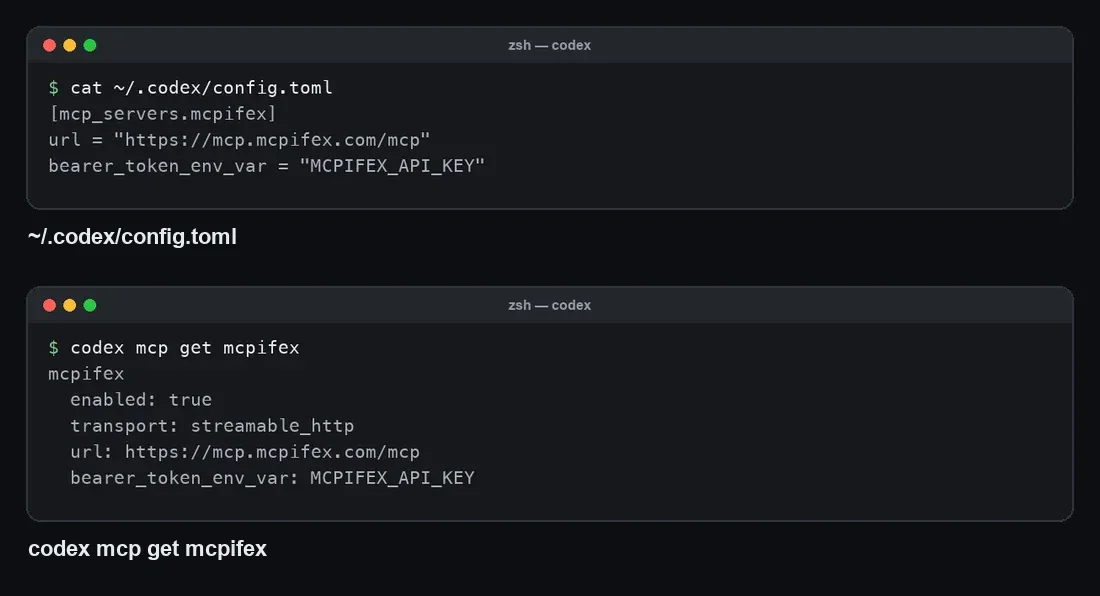
Each server gets one [mcp_servers.<name>] table. Which keys you set decides the transport.
Stdio servers (a local process):
command(required): the program that starts the server.args: arguments passed to that program.env: environment variables set for the server.env_vars: names of variables to forward from your environment.cwd: the working directory to start in.
[mcp_servers.local-notes]
command = "node"
args = ["server.js"]
cwd = "/path/to/server"
env_vars = ["NOTES_TOKEN"]
Streamable HTTP servers (a URL):
url(required): the server address.bearer_token_env_var: the variable that holds a bearer token.http_headers: static header names and values.env_http_headers: header names mapped to variable names, so values come from the environment.
Options for both: enabled (set false to switch a server off without deleting it), enabled_tools, disabled_tools, startup_timeout_sec (default 10) and tool_timeout_sec (default 60). The Codex configuration reference lists every MCP key with its type.
Which codex mcp commands are there?
codex mcp add <name> --url <URL> [--bearer-token-env-var VAR]
codex mcp add <name> [--env KEY=VALUE] -- <command...>
codex mcp list
codex mcp get <name>
codex mcp remove <name>
codex mcp login <name>
codex mcp logout <name>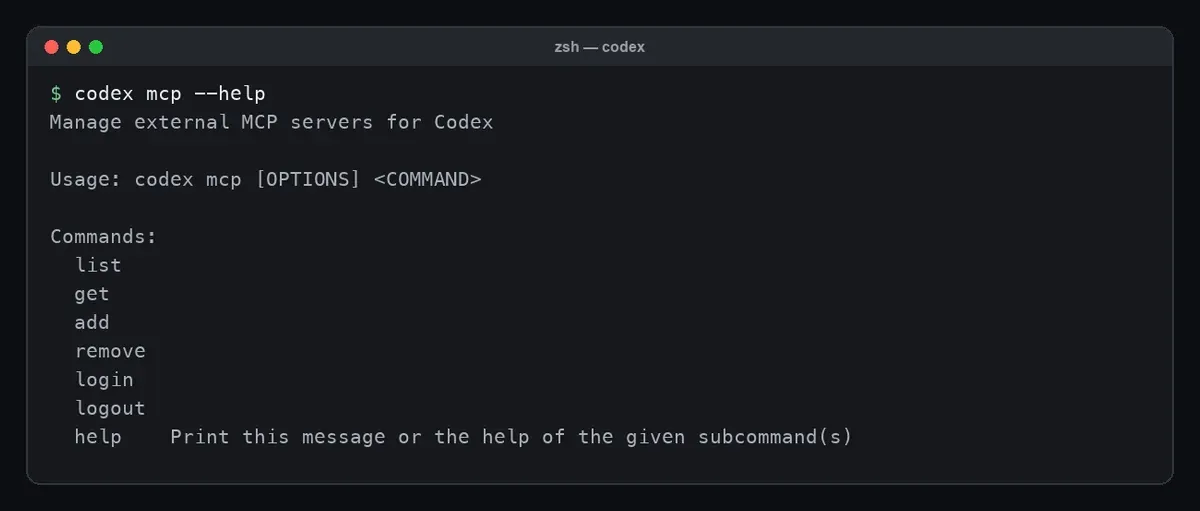
--env only applies to stdio servers, and --bearer-token-env-var only to HTTP servers. codex mcp get prints one server's saved settings, which is the quickest way to check a typo in the URL.
How do you check that the server is connected?
Run codex mcp list to see every configured server. Inside an interactive Codex session, type /mcp to see the servers that are active and their tools. Then ask for one harmless read. With a PostgreSQL instance, try "List the tables in my database" and read the tool result Codex shows. On MCPifex, the portal's Activity page confirms that the request reached the gateway.
How do you limit which tools Codex can call?
You get two layers, and they do different jobs.
The first layer is the MCPifex key. Tools are switched on per API key, and anything not on is denied. The gateway removes those tools from the list Codex receives and refuses any call to them. A new key starts with reads on and writes off. Because the rule lives at the gateway, it applies to every client that uses the key.
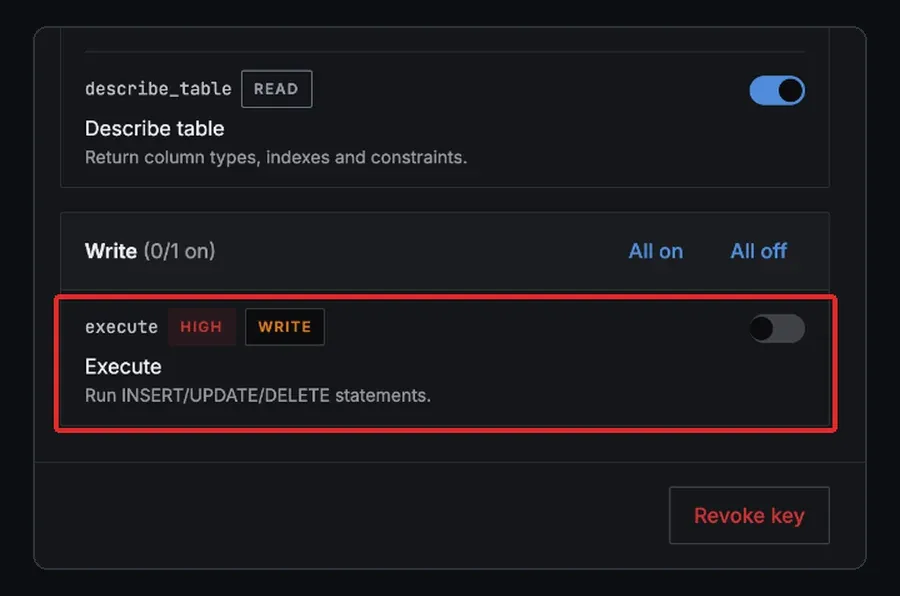
The second layer is Codex itself. enabled_tools is an allow list and disabled_tools is a deny list, applied after the allow list. These filters only exist in this Codex config, so another app using the same key does not inherit them. For a PostgreSQL instance where the key allows both tools, this keeps Codex to reads:
[mcp_servers.mcpifex]
url = "https://mcp.mcpifex.com/mcp"
bearer_token_env_var = "MCPIFEX_API_KEY"
disabled_tools = ["execute"]
Use the key for anything that must hold everywhere, and the Codex filter to trim a long tool list for one project. A tool turned on at the gateway reaches live clients within about a minute.
Should you use OAuth or a bearer token?
Codex supports both for Streamable HTTP servers. For an OAuth server, run codex mcp login <name>. It opens a browser, you sign in, and Codex stores the credential. For a machine with no local browser, OpenAI's docs describe a --no-browser flag. Codex prints the authorization URL, you open it elsewhere, then paste the full redirect URL back into the terminal. Run codex mcp login --help first, because older builds may not have the flag.
A bearer token from an environment variable has no browser step, so it behaves the same over SSH and in CI. MCPifex uses API keys, so the bearer setup above is the one to use. See API keys and authentication for how MCPifex keys work.
Does ChatGPT on the web use this config?
No. OpenAI's docs say the ChatGPT desktop app, Codex CLI and IDE extension share the MCP configuration on the same machine. ChatGPT on the web does not read local Codex files. In the browser you add a remote server as a plugin instead, which is the MCP connector pattern. The desktop app and the IDE extension also have an MCP servers screen with an Add server button, if you prefer a form to the terminal.
Troubleshooting
- 401 from the server. The variable is empty in the shell that started Codex, or the key was revoked. Run
echo $MCPIFEX_API_KEYin that shell. MCPifex keys start withmcpx_. - The server never starts. A slow stdio server can miss the 10 second default. Raise
startup_timeout_sec. - A tool call times out. Raise
tool_timeout_secabove its 60 second default. - A project server is ignored. Codex only reads
.codex/config.tomlin trusted projects. - A tool is missing. Check
enabled_toolsanddisabled_toolsfirst, then the tools switched on for your key. Changes at the gateway take up to a minute.
How do you use hosted servers without running them?
Each local server you add is another process and another credential to keep updated. With MCPifex, every hosted server uses the same gateway URL. Each MCPifex key belongs to one instance, so add one table per instance, such as [mcp_servers.mcpifex-postgres] and [mcp_servers.mcpifex-bing], each reading its own key variable. Hosted servers include PostgreSQL, Google Search Console, Bing Webmaster Tools and more. If a service has no MCP server, connect any API scans its docs into tools and hosts the result behind the same URL. Nothing runs on your machine.
The same key works in other agents. See how to add an MCP server to Claude Code or connect it to Gemini CLI, and connect your AI for every client. The Free plan includes 3 instances and needs no card.
Frequently asked questions
In ~/.codex/config.toml by default, with one [mcp_servers.] table per server. A project can have its own .codex/config.toml, which Codex reads only for trusted projects.
Yes. The Codex CLI, the IDE extension and the ChatGPT desktop app read the same MCP configuration, so a server added in one is available in the others. ChatGPT on the web does not read it.
Export the key as an environment variable and add the server with --bearer-token-env-var set to that variable name. Codex stores only the name and sends the value as a bearer header.
Yes. Use enabled_tools and disabled_tools on the server's table in config.toml. With MCPifex you can also limit tools on the API key itself, which applies in every client that uses the key.
Sources
- OpenAI. Model Context Protocol in Codex. Config location, server keys,
codex mcpcommands and shared configuration. - OpenAI. Codex configuration reference. Every
mcp_serversoption with types and defaults. - Model Context Protocol. Transports (spec version 2025-06-18). The stdio and Streamable HTTP transports.
Ready to connect?
Run hosted MCP servers behind one endpoint and choose exactly which tools your AI can use.